Posts

StyleGAN3 Setup

Paper:   https://nvlabs.github.io/stylegan3 Source:   https://github.com/NVlabs/stylegan3 Install Visual Studio Community Edition (2017): https://visualstudio.microsoft.com/vs/community Add 64-bit compiler into system environment PATH variable: C:\Program Files (x86)\Microsoft Visual Studio\2017\Community\VC\Tools\MSVC\14.16.27023\bin\Hostx64\x64 Install CUDA (11.6): https://developer.nvidia.com/cuda-downloads Install Anaconda3 (2021.11.0): https://www.anaconda.com/products/individual#windows From Anaconda Prompt: conda create --name StyleGAN3 python=3.81 conda activate StyleGAN3 conda install click (4.10.3) conda install numpy (1.21.5) conda install requests (2.27.1) conda install pillow (8.4.0) conda install scipy (1.7.3) conda install ninja (1.10.2) conda install imageio (2.9.0) conda install tqdm (4.62.3) conda install colorama (0.4.4) pip install imageio-ffmpeg (0.4.5) pip install psutil (5.9.0) conda install pytorch torchvision torchaudio cudatoolkit=11.3 -c pytorch Test...
Building LOD Models for Unity in Blender

Image
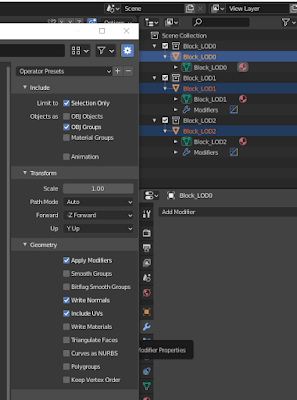
1) Name your original collection, model, and mesh NAME _LOD0 2) Duplicate the collection for each LOD level, namking the new collections, models, and meshes the appropriate LOD number (i.e. _LOD1, _LOD2, etc.) 3) Increasingly lower the poly count on each LOD model, either manually by merging vertices, or using the decimate modifier and lowering the ratio progressively 4) Select just the meshs of each collection and export to OBJ 5) Deselect "OBJ Object" and select "OBJ Groups" 6) When you import this object into Unity, the LOD levels will show up automatically and you can adjust the camera distance for each LOD from the UI as desired

Unity: VR Head Blocking (Oculus Integration)

Image
VRHeadBlocking.cs: using System.Collections; using System.Collections.Generic; using UnityEngine; // VR Head Blocking Script (Synaptic Response) // For use with Unity + Oculus Integration (v23.1) // Add this script to the CenterEyeAnchor component of the OVRCameraRig // If your player component has colliders set its label to "Player" // Initial Implementation: Scott Lupton (02.17.2021) public class VRHeadBlocking : MonoBehaviour { public GameObject player; private int layerMask; private Collider[] objs = new Collider[ 10 ]; private Vector3 prevHeadPos; private float backupCap = . 2f ; private void Start () { layerMask = 1 << 8 ; layerMask = ~layerMask; prevHeadPos = transform.position; } private int DetectHit (Vector3 loc) { int hits = 0 ; int size = Physics.OverlapSphereNonAlloc(loc, backupCap, objs, ...

Normalization and Sine "Hop" Transformation

Image
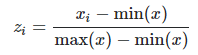
  Normalization: Can be used to convert a value x into a normalized range between 0-1. Sine "Hop" Transformation: sin(Pi*x) Translate a Sine curve "hop" using a value x in the range of 0-1.

Steam: Clear Achievements

1)  Press Win + R 2) Enter:  steam://open/console 3) Enter: achievement_clear <appID> <achievementCode>

Blender: Cloth Rendering

Image
1) Add a plane mesh 2) Select plane in edit mode, right-click, subdivide 3) Increase number of cuts in bottom left subdivide pop-up 4) Select plane, object mode, physics, cloth 5) Set cloth physics quality steps to 10 6) Under collision, set quality to 5 and check "self collision" 7) Select objects for cloth to fall on, physics, add collision 8) Under the cloth physics -> cache, press bake 9) Click on plane, and add/adjust Subdivision Surface modifier 10) Add solidify modifier to give the sheet some thickness

UE4: Project Folders to Delete for Source Code Repo Uploads

Image
Delete everything from the project except for files in the root folder and the following sub folders (as of Unreal Engine v4.24) Config Content Source Intermediate/ProjectFiles